
- PIM source
Drawer organizers · Outside width (mm)
- Configured WooCommerce mapping
Home storage → Drawer inserts · organizer_width_mm
- Storefront check
160 mm on the correct product page and locale
Connect the catalog to the configured store
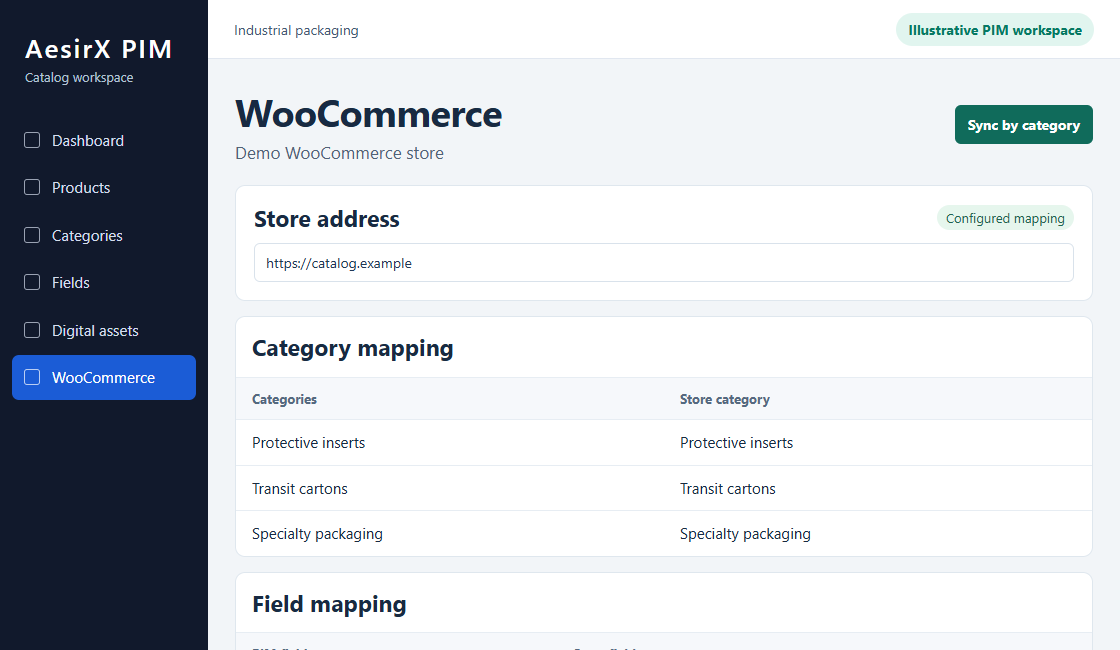
AesirX PIM holds the product record, localized copy and media. The WooCommerce integration demonstrated in the enterprise pilot gives the catalog team a way to publish product information from PIM to a configured store. The team maps categories and supported fields, then checks what the store actually displays. The diagram and examples on this page use fictional products.
Decide what each mapping should do
Suppose a demo catalog groups a 160 mm organizer under Drawer organizers, while shoppers find it in Home storage → Drawer inserts. The category mapping places the item where customers browse. A separate configured field mapping can put the width in the WordPress custom field the theme expects.
| Item to map or review | Source in PIM | Destination to verify |
|---|---|---|
| Category | Drawer organizers | Home storage → Drawer inserts in the intended store language |
| Example custom field | Numeric outside width, measured in mm | A configured field such as organizer_width_mm, rendered as 160 mm |
| Product content | Localized name and description | Correct WooCommerce product page and text for that language |
| Media | Product thumbnail and relevant gallery images | Listing thumbnail and the expected images on the detail page |
Use a stable product reference to identify the intended destination when reviewing an update. A store with two languages needs a check for each destination record. Exact supported fields and language behavior depend on the deployed configuration. Multilingual content · Digital assets
Verify one product before publishing a category
- Prepare the record. Confirm the PIM publication state, category, copy, expected field values and correct images. Note the expected store URL or destination record.
- Publish a representative item. Use Sync Product from the product editor in the configured pilot. Check the correct WooCommerce product in administration, then open its storefront page signed out.
- Browse like a shopper. Find the product from the intended category. In each configured language, compare the title, visible dimensions, image order and description.
- Repeat with a small category. The WooCommerce integration view has Sync by Category. Confirm which records are in scope in your configuration and spot-check both a complete item and one with an optional value or missing translation.
Diagnose the mismatch where it occurs
- Correct detail page, missing item in the listing. Check the mapped category, store catalog visibility and any listing filters. WooCommerce can show a published item on its detail page while omitting it from the shop and search. WooCommerce catalog visibility
- Correct field in PIM, wrong or blank value on the site. Inspect the destination field first, then the storefront template and unit formatting.
- Wrong language or image. Check which WooCommerce product record the locale points to and compare the thumbnail and gallery with the intended PIM record.
The pilot confirms product-content publishing from PIM toward WooCommerce. Evaluate update timing, reverse updates, availability, prices and checkout independently for your own setup. Bring one mapped product and one storefront mismatch to a demo if you want to review the flow together. Publishing checklist · Discuss your WooCommerce setup